
Many of us older Word users remember the ubiquitous Clippy. Every time you would start to type a letter, he would pop up offering suggestions. We all celebrated when he disappeared.
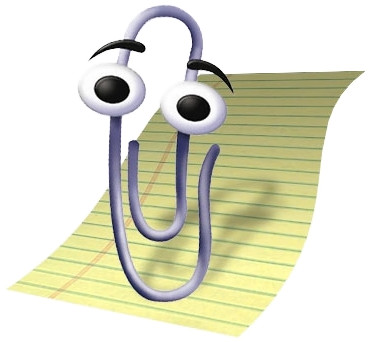
For new users, Microsoft has introduced “Copilot” to MS Word. Same Clippy, different guise.
The Quick Version for removing Copilot:
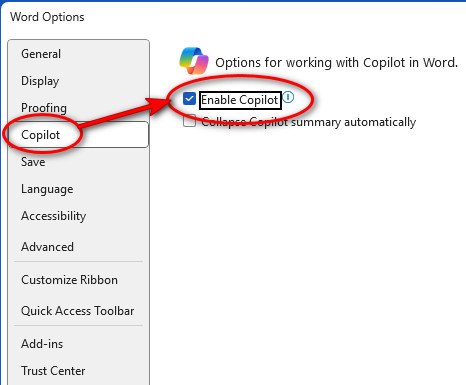
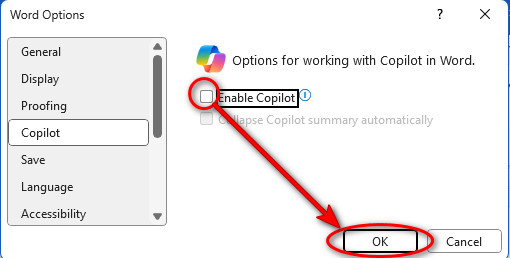
File tab > Options > Copilot > Uncheck Enable Copilot > OK.
Now for the detailed version with screenshots…
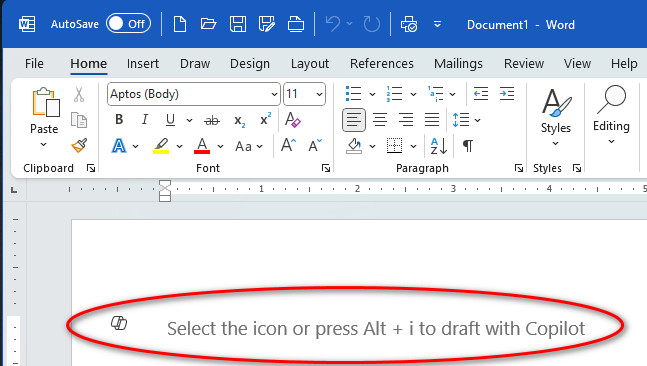
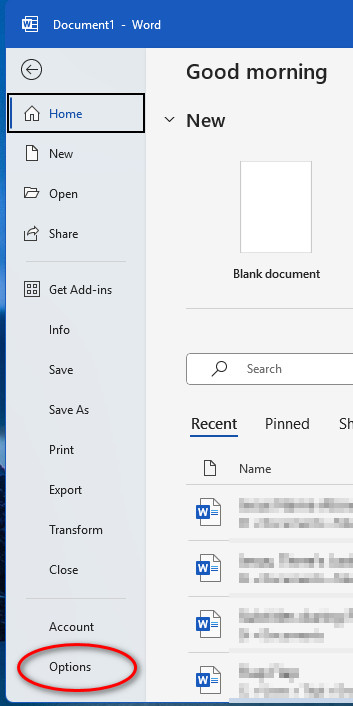
You can turn off Copilot with three clicks. From the File tab, choose Options near the bottom of the navigation pane. From the Options navigation pane, choose Copilot. Uncheck the Enable Copilot box by clicking the little check. Click OK. Poof! Copilot/Clippy is gone.
To restore Clippy… I mean Copilot:
File tab > Options > Copilot > click the Enable box > OK.

 Helpful Office Tips