
To prep, get all your photos in one folder – I don’t think there is a limit. The office I mentioned had over one hundred. Also, pick some music if you have any mp3 files handy. That’s all you need. Oh, and a PC. This shortcut is not available on Macintosh.
Open PowerPoint and save your document as Year in Review Photos or other appropriate name.
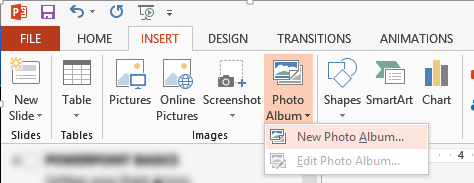
On the Insert tab>Images section>click on the Photo Album drop-down arrow. Then select New Photo Album.
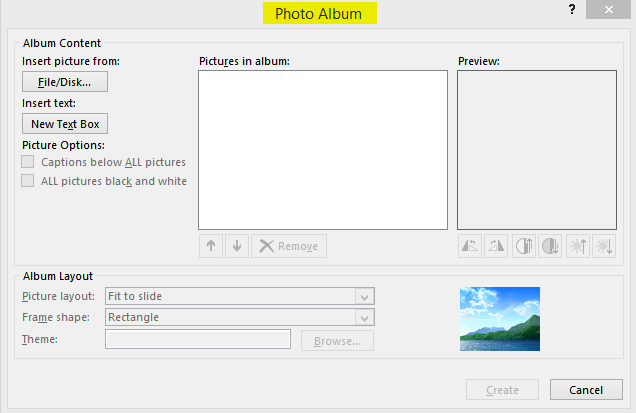
Click on the File>Disk button, and go to your photos. Select all of them in the folder using one of these methods:
Your photos are set, so In the Album Layout section, select how many photos per page. If you want one photo per page and for the photo to fill up the page, select Fit to slide. Frame shape is another option, although I usually use the default Rectangle. In the Theme box, click browse and pick any theme. You can change this easily later, so just pick the first one that catches your eye.
Now click Create and PowerPoint does all the tedious work for you. You may need to add some text to the first slide. Also, if you don’t like the Design, go to the Design tab and pick one you do like.


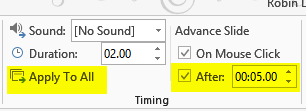 The secret weapon in the Transitions tab is the Apply to All button. Apply to All – ALWAYS DO THIS LAST AND ALWAYS DO IT AFTER MAKING ANY CHANGES! This applies your transition and timing to every slide. Remember, you want people to look at your slides not your PowerPoint transitions. Uniformity is good in this case.
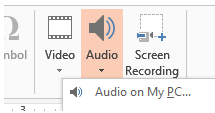 Go to the first slide. From the Insert tab>Media section, click on the arrow below Audio. Select Audio on my PC. Pick a song that sets the appropriate mood. Remember, earlier you saved your music in the same folder as your presentation. Click insert and a speaker icon will appear on your slide and it should be selected (if not, select it).
The Audio Tools tab will appear with the Playback tab. In the Audio Styles section select Play in Background. This will automatically change the settings to:

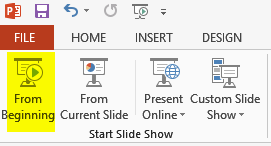
Oh, and in the office I mentioned, visitors loved the show and thought we spent hours on it.

 Helpful Office Tips
Nice Blog, thanks for sharing that’s awesomePrint Malaysia
LikeLike
The blog was absolutely fantastic! Lot of information is helpful in some or the other way. Keep updating the blog, looking forward for more content…Great job, keep it up.Print Malaysia
LikeLike