
Find BlueLetterBible.org
Type BlueLetterBible.org in the URL or search box of your internet browser. Press Enter (or Return on a Macbook). My screenshot is in Google Chrome, but most browsers are similar.
It does not matter if you use upper or lowercase letters when going to a website or entering an email address. For your computer, upper and lowercase only matters in passwords.
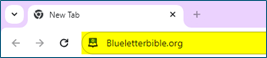
Search the Bible and Select Version
Type the specific verse or chapter in the “Search the Bible” box. I will type ‘daniel 9” in the box. Again, upper or lowercase letters do not make any difference. You may also search on phrases as shown in the Example at the bottom of the “Search the Bible” box.
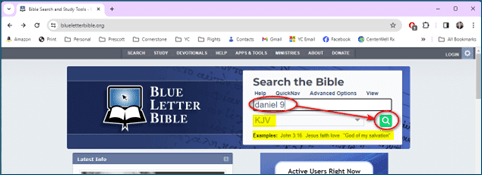
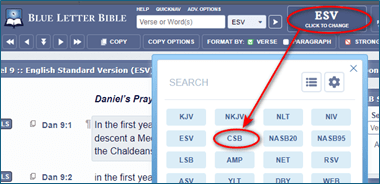
Blue Letter Bible’s default version of the Bible is “KJV” for King James Version. Before you search, you can switch to a different translation of the Bible. Click on the “KJV” below the chapter/verse search box or the little drop-down arrow to the right of KJV. A pop-up window will appear with other version choices. Click on the version you would like to see.
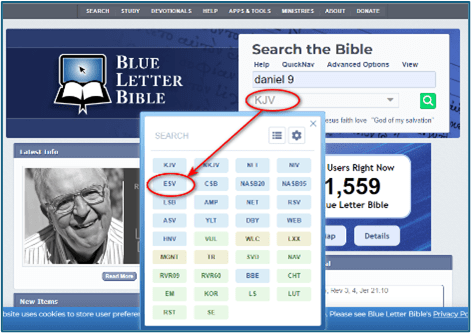
The pop-up window will disappear, and the new version’s acronym will appear in the “Search the Bible” box below the scripture.
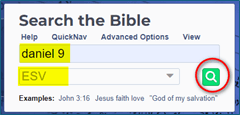
Book, Chapter, Verse
Click the green magnifying glass to search Blue Letter Bible. (You may also press Enter right after you type a verse or phrase.)
Verse by Verse or Phrase Page
On the next screen, the verses will show verse by verse.
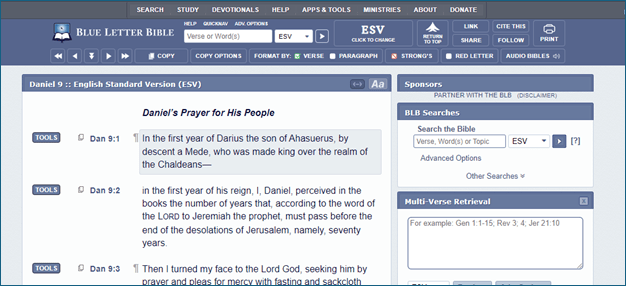
If you want to change to a different version, click the “CLICK TO CHANGE” button in the top menu and select a different version. I will switch to CSB.
Tools
For tools by verse, scroll down to the desired verse, and click on the “TOOLS” button. I will click “TOOLS” next to Daniel 9:4.
The Tools pop-up window will appear, with the Interlinear tab selected. Interlinear allows you to see the English words next to the Hebrew (or Greek for the New Testament).
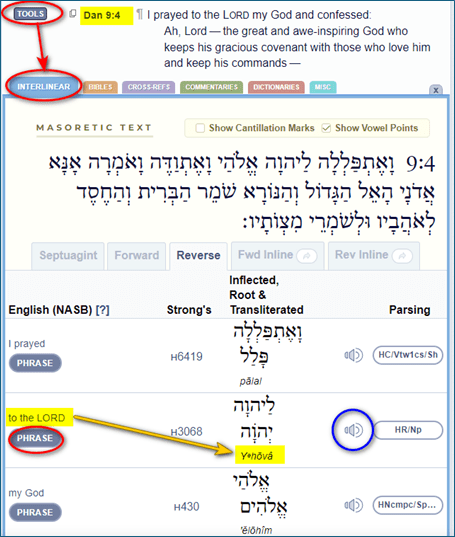
You can try out all the tabs by clicking them: blue Interlinear, orange Bibles, purple Cross References (Refs), green Commentaries, red Dictionaries, and sky blue Miscellaneous (Misc).
From the Tools menu, click back on the “TOOLS” button to open and close the Tools pop-up window. You may also click the light blue “X” at the top right of the Tools window to close it.
Usage and Definition per Strong’s Concordance
In that Tools>Interlinear windows, the Strong’s Concordance reference number is to the right each word or the phrase.
To the right of the Strong’s Concordance reference number, the Hebrew or Greek is shown with the English phonetic spelling of the word below. Click the speaker icon on the right to hear someone say the Strong’s reference number, and then pronounce the word in Hebrew or Greek. (He has a strong accent, perhaps Texan, so I don’t know how accurate the Hebrew pronunciation is.)
Click the Strong’s number, and the Lexicon page will appear with the Hebrew, the English “transliteration,” pronunciation, and more.
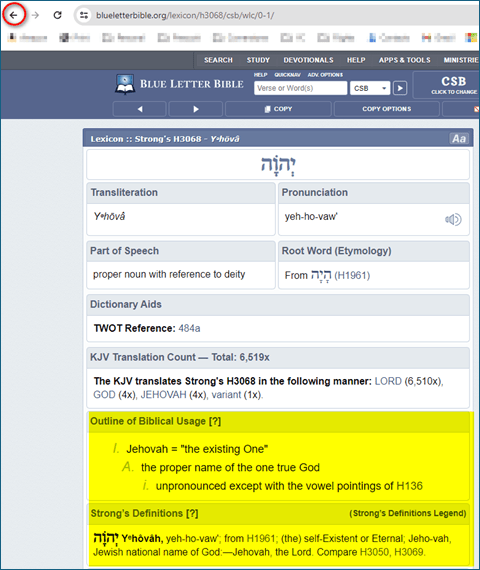
Scroll down to both the “Outline of Biblical Usage” and “Strong’s Definitions” for the usage and definition.
Click the “Back” button in your internet browser to return to the previous page (circled in red).
Phrases
You can scroll down to the particular word or phrase, such as “to the Lord.”
If you click on the “PHRASE” button on the left, you will go to a screen with all Bible verses that use the same word or phrase.
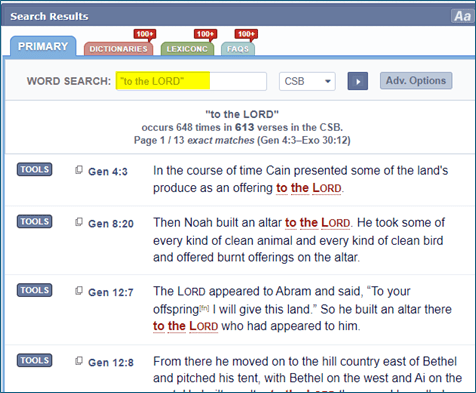
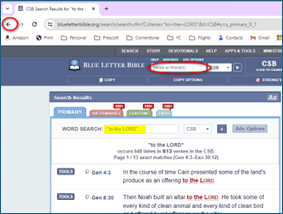
To return to your verse, either click the “Back” button in your browser to go back one step or type the original verse in the “Verse or Word(s)” search box at the top of the Blue Letter Bible page to start on the section of the Bible again.

 Helpful Office Tips