
How do you do a character count INCLUDING the spaces? I’m the online host for my church’s live streaming service. I post links and comments on YouTube, BUT those comments and links can only be 200 characters, including spaces and returns. How do I check it before I post or copy & paste from my script?
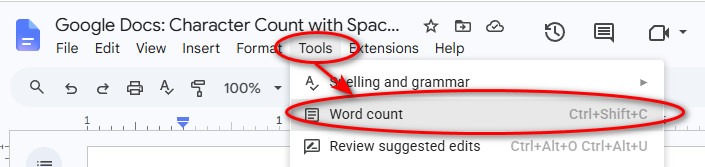
You can use Google Docs to set up your script and count the characters. It’s very easy, BUT you’ll need to turn it on. From the Google Docs>Tools menu, select Tools>Word Count. (Shortcut is Ctrl+Shift+C.)
Now at the bottom left of your Google Docs window, you’ll see a Word Count for your entire document. That’s for those students trying to type a 500 word essay, right?
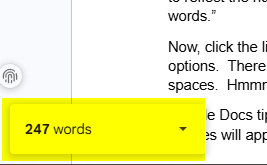
To change from the entire document, let’s say to just a specific range of text, highlight your specific words where you need a character count. The word count changes to reflect the number of words in your highlighted range out of the entire document, “44 words.”
Now, click the drop-down arrow next to that word count. A pop-up appears with a few options.
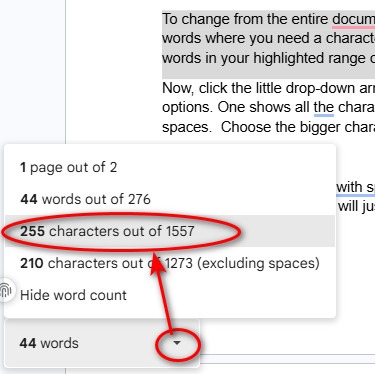
One shows all the characters with spaces, and one shows the characters excluding spaces. Choose the bigger character count. Hmmm… I’m at 196. That will fit. Now I’ll copy & paste into YouTube! If it doesn’t fit yet, edit and continue to check.
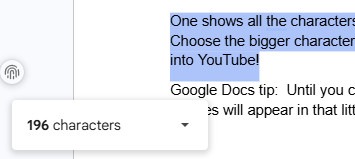
Google Docs tip: Until you close that document, highlight any text, and the Word Count with Spaces will appear in that little box. Opening a new or saved document? Start the process again.
For Microsoft Word character count instructions, click here: https://helpfulofficetips.com/2026/05/30/microsoft-word-character-count-with-spaces/


1 Comment